Old Photo Restoration Online Free with AI — No Sign-Up, No Watermark
Improve fading, blur, and lost detail in old photos. We preserve the original colors and do not colorize. Scratches, dust, and creases are not removed.
Edit your photo
Loading processing conditions…
click to browse, or paste from your clipboard · JPEG, PNG, or WebP
Before and after
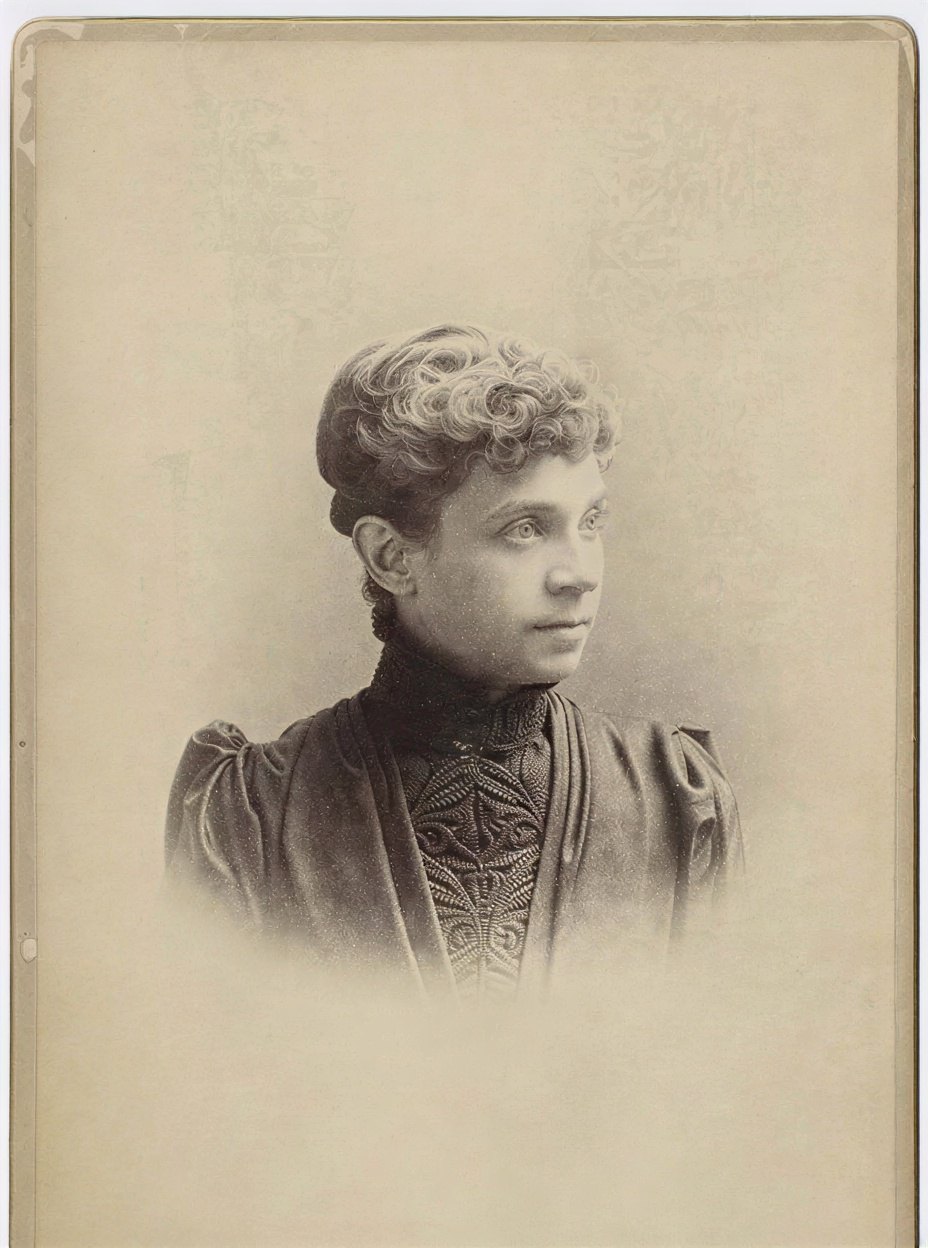
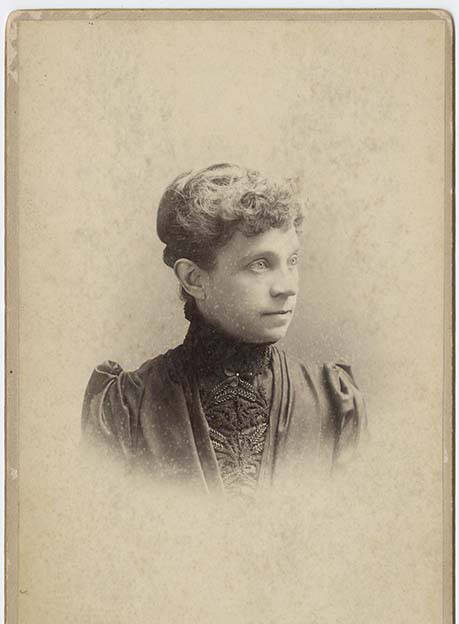
Explore a precomputed result. Trying this sample is instant and uses no credits or daily allowance.
How to restore old photos
Preserves original colors; no colorization.
Choose your image
Upload, drag, or paste a photo. Check the resize notice and processing conditions.
Start processing
Confirm the displayed cost and limits, then start. The page shows the actual task status while you wait.
Compare and download
Compare the result with your original and check the output dimensions, then download.
Why Retouchly
| Free runs per day | 3 |
|---|---|
| Sign-up | Not needed for free runs |
| Watermark | None, on free and paid results |
| Max output size | Free: 2048 px on the long edge · Paid: 4096 px |
| Image deletion | Within 24 hours after the task finishes |
What old photo restoration can fix
Old photos rarely fail in just one way. Prints fade and their contrast drains, surfaces pick up scratches, dust, and creases, corners soften, and decades of storage blur what the camera once caught clearly. Free AI photo restoration here aims at the fading and the softness: it rebuilds faded detail and brings faces back into focus while leaving the photo otherwise itself. Physical marks are not removed — scratches, dust, mold spots, creases, tears, and peeling emulsion stay in the output. The output is a restored copy at a stated size, shown beside the original so every change can be checked before you keep it.
The material it is meant for sits in family albums and shoeboxes: portraits of grandparents, wedding and school prints, and the single surviving photograph of someone who can no longer be photographed. The photographs do not need to be precious antiques, either — prints from the eighties and nineties fade in exactly the same way, and they are often the copies family members ask about most. A scan is the ideal input, but a flat, evenly lit photograph of the print taken with a phone works too — many restorations begin from exactly that, when no scanner is nearby. What matters is that the whole print is in frame, straight-on, and in focus.
Restoration has a boundary, and this tool states it plainly: it preserves the original colors and does not colorize. A sepia print stays sepia, a black-and-white portrait stays black-and-white — the damage is repaired, the palette is not invented. That is a deliberate choice rather than a missing feature: adding color is a separate creative decision, and doing it silently would misrepresent both the photograph and the tool. Missing pieces and faces too small or damaged to read set the further limit of what any restorer can truthfully rebuild.
This page is also the right pick among the site's tools. Recent photos that are merely soft belong to the picture enhancer; true motion or focus blur belongs to the image sharpener. If what you were searching for is an old photo enhancer, this page is it: old photo restoration is tuned for what age does to a print's look — fading, washed-out contrast, and the general softening of old prints — which is a different job from making last weekend's snapshot crisper. If a shoebox find turns out to be in good shape, the enhancer may be all it needs; if it is genuinely faded and worn soft, restoration is the fit.
How to restore old photos for the best results
Everything starts with the scan. Use the highest resolution available to you, place the print flat and square on the glass, and prefer the unedited original file over a cropped or filtered copy. Without a scanner, lay the print on a plain surface in even light, hold the phone steady and parallel to it, and shoot the whole print — small, angled, or glare-streaked captures give the restoration far less to work with. Every flaw avoided at the scanning stage is a flaw the restoration does not have to spend its work correcting.
From there the flow matches the other tools: upload the image by dragging it in, clicking to browse, or pasting; read the processing conditions under the upload area, which show your remaining free runs for today, the output size, any resize notice, and how long the image is kept; start the run and follow the reported status; then compare the restored copy against the original with the slider and download the file you want to keep. Results are watermark-free, and the copies we store are deleted within 24 hours.
Set expectations by the state of the print. Fading, low contrast, and general softness are the kinds of damage it can most often improve; faces usually show the biggest change, because they are what the eye checks first. Group photographs with very small faces usually improve less than single portraits. Physical damage is a different matter: scratches, dust, mold spots, creases, tears, and peeling emulsion are not removed — they stay in the restored file and may even look sharper and more visible than before. Faces too small or blurred to read cannot be guaranteed an accurate recovery either, so compare identities, jewelry, and handwriting against the original before treating the restored file as the new family record.
The service around the tool carries the same promises as the rest of the site: 3 free runs a day without an account, no watermark on any result, our copies deleted within 24 hours, never used to train models, and any run that fails returns the free run or credits it used. The photo is uploaded for processing to the provider named in the conditions. Keep the original scan until the restored copy has your approval.
Steps for capturing an old print before you restore it
- Take the print out of its frame, glass, or plastic sleeve first — those add glare and reflections that the restoration will treat as part of the photo.
- Scan it if you can: 300 DPI for postcard-size and larger prints, 600 DPI for small ones. Free runs output up to 2048 px on the long edge, so a bigger scan is scaled down to fit.
- No scanner? Photograph it with the flash off, in even light from a window or from both sides, holding the phone directly above the print and parallel to it so the corners stay square.
- Crop to the edge of the print before you upload, so the output size goes to the photo rather than the table around it.
- Compare the result with the slider and keep the original scan: scratches, dust, and creases are not removed, and a retoucher can still work from the original.
Frequently asked questions
Which image formats can I use?
Use JPEG, PNG, or non-animated WebP. Export HEIC photos as JPEG or PNG first.
Will my image be resized?
Images above the displayed processing limit are reduced before upload. You will see a resize notice before starting; results show their actual pixel dimensions.
Will the result have a watermark?
No. Both free and credit-paid results are watermark-free.
Where is my image processed?
Your image is uploaded for processing. The provider and image retention period are shown in the processing conditions before you start.
What happens if processing fails?
When the service confirms a provider failure or timeout, your allowance and any credits used are returned. A browser waiting timeout alone does not confirm failure.
Can AI enhancement change text or numbers in my photo?
Yes. The model rebuilds detail it cannot see clearly, so small or blurry text — digits included — can be redrawn as different characters: a receipt's “3.6%” may come back as “2.6%”. Large, clear text is usually unaffected. Don't use it where exact text matters, such as receipts, IDs, or documents, and check any text against your original.
Will restoration colorize my photo?
We preserve the original colors and do not colorize photos. Restoration aims to improve fading, blur, and lost detail; physical marks such as scratches, dust, and creases are not removed and stay in the result.
Can I restore old photos online for free?
Yes — you get 3 free runs a day online, no account needed. Upload a scan of the photo, check the processing conditions shown before you start, and download the restored copy without a watermark; a failed run returns the free run it used. Past the daily free runs, you can sign in to continue with credits.
Is there a photo restoration service near me?
There doesn't need to be — this is an online service, so it works wherever you and the photo are. No drop-off, no lab queue, no appointment: scan the print, or photograph it flat in even light, upload it from any browser, and compare the restored result with the original before deciding whether to download it.
Do I need to install an app to restore old photos?
No. Restoration works as a web page on a phone or computer — no app to download or install. Your photo is uploaded for processing to the provider named in the conditions; the copies we store are deleted within 24 hours and are never used to train models. You can restore a picture wherever you can open the site.