How to Fix a Blurry Photo (2026): What Works for Each Kind of Blur
How to fix a blurry photo in a browser, on iPhone, in Photoshop, Lightroom and Google Photos. Three kinds of blur run through a real tool, with the cases that cannot be fixed.
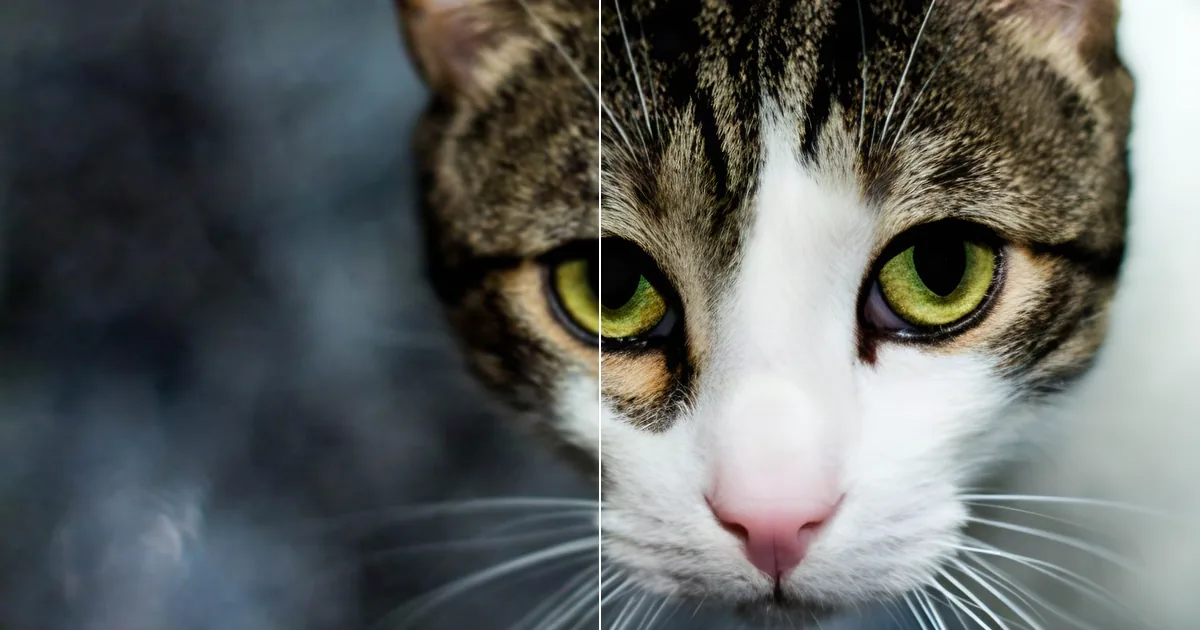
How to fix a blurry photo depends on why it is blurry. A missed focus, a shaky hand and a tiny compressed file all look "blurry" in a thumbnail, but they respond to completely different fixes, and one of them often cannot be fixed at all. On October 31, 2026 we made all three kinds of blur from the same sharp photo, ran each through our own unblur tool as an anonymous visitor, timed the runs and kept the files. Below is what came back, followed by the honest version of what the iPhone Photos app, Photoshop, Lightroom and Google Photos can do with the same problems.
A note on where we stand: we build Retouchly, the browser tool used in the test. The results that went wrong are shown as plainly as the ones that went right.
First, find out which kind of blur you have
Open the photo at full size, not in a thumbnail, and look at an edge: the rim of a glass, the line of a jaw, a letter on a sign.
- Out of focus. Everything on the subject is evenly soft in every direction, and often something else in the frame — the background, a hand nearer the lens — is sharp. The lens locked onto the wrong thing.
- Motion blur. Edges smear in one direction. Points of light stretch into short streaks, and a face can look like a soft double exposure. The camera or the subject moved while the shutter was open.
- Low resolution. The picture is tiny, or blocky along the edges. It has been through a chat app, a social feed or a screenshot, and the detail was thrown away rather than blurred.
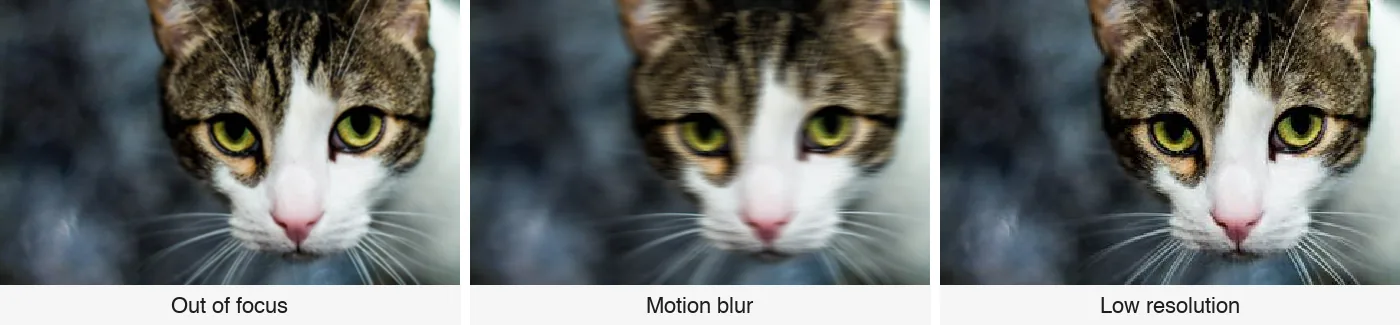
The three test files above all come from one sharp source: a 4,000×2,478 cat portrait (CC0, by Anton Petrov on Unsplash), resized to 960 px on the long edge. The first was softened with a Gaussian blur of radius 1.5, the second was smeared with a 25-pixel horizontal motion blur, and the third was simply shrunk to 320 px. None of this is a lab setup — it is the same damage a missed focus, a shaky hand and a forwarded file do to a picture — but it is simulated, and we say so.
The quick fix: unblur it in your browser
The fastest route for most people is an AI unblur tool that runs in the browser, because there is nothing to install and the first few runs are free. On Retouchly's unblur page the steps are:
- Open the page on any phone or computer and upload the blurry photo — JPEG, PNG or WebP. Use the original from your camera roll, not a copy someone sent back to you.
- Read the conditions shown under the upload: how many free runs you have left today, and the output size for this run. Then start processing.
- When the result appears, drag the comparison slider across the part that matters — the eyes, the text — at full size, and download if it is better.
What that costs: 3 free runs a day per visitor, no account needed; free output is capped at 2,048 px on the long edge and credit-paid runs at 4,096 px. There is no watermark on the file.
What came back for each kind of blur
| Case | Input | Time to result | Output | Did it fix the blur? |
|---|---|---|---|---|
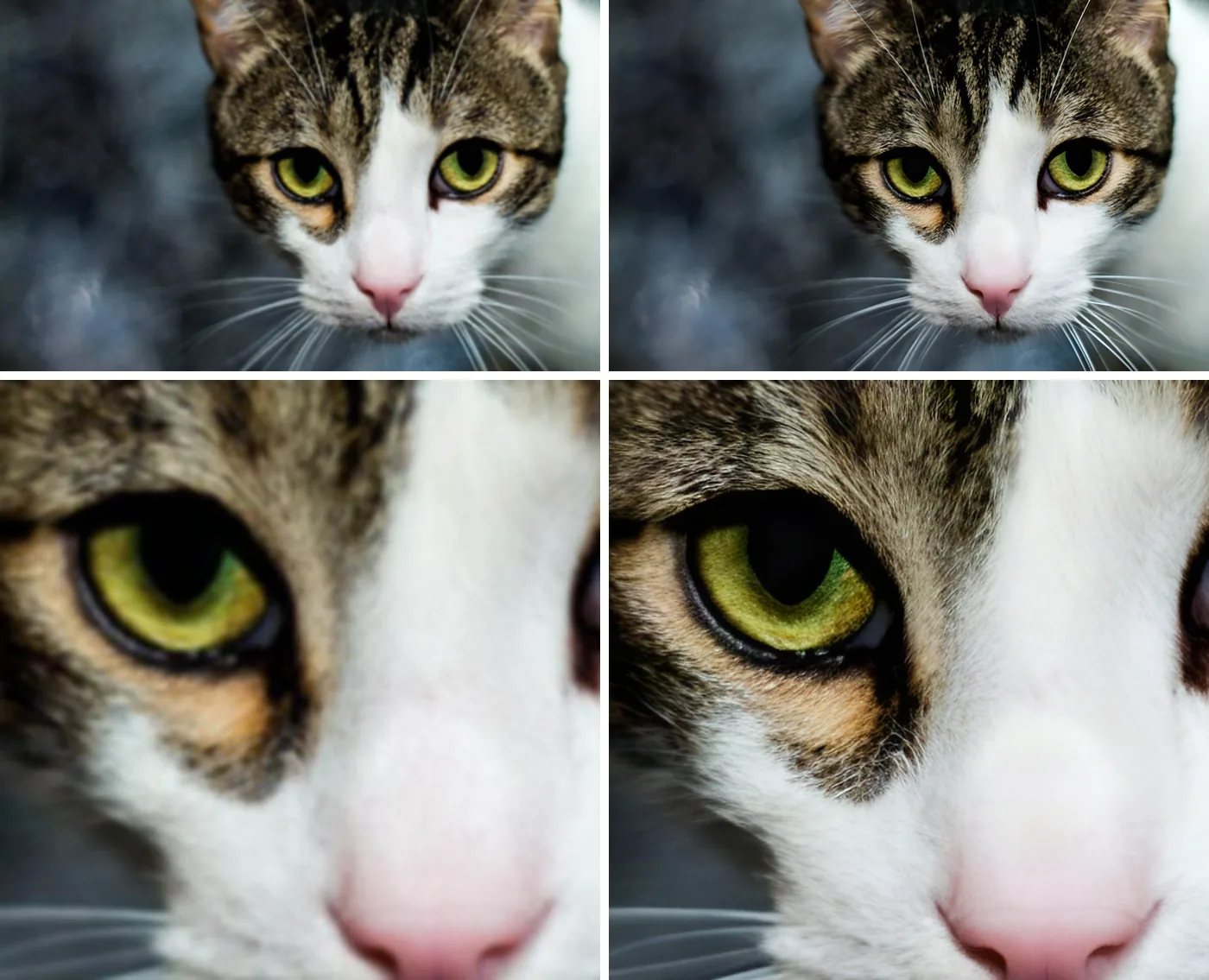
| A — out of focus | 960×594 | 11.8 s | 1,920×1,188 (2×) | Yes |
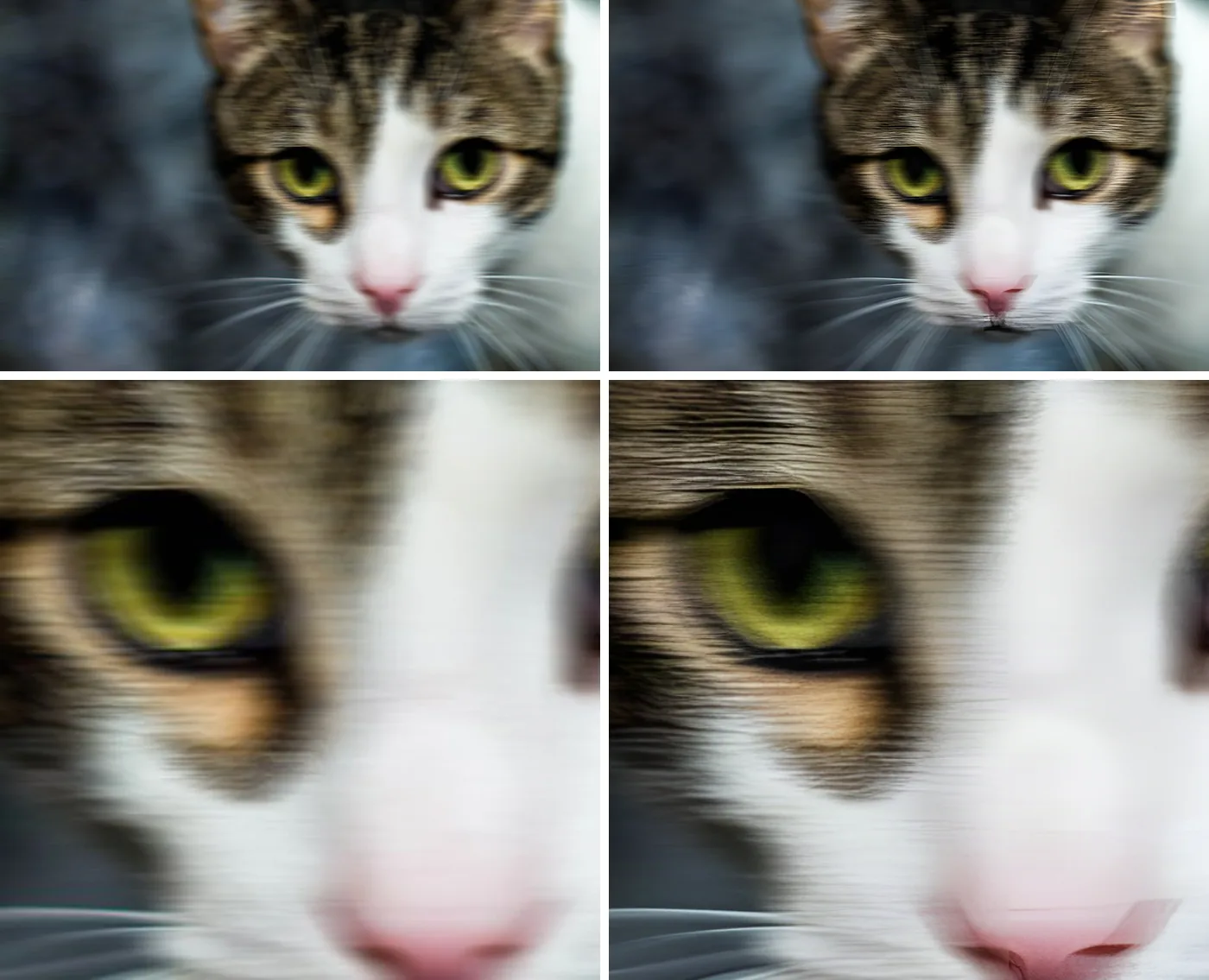
| B — motion blur | 960×594 | 12.3 s | 1,920×1,188 (2×) | No — the streaks stayed |
| C — low resolution | 320×198 | 96.1 s | 1,280×792 (4×) | Larger and cleaner, visibly AI-drawn |
Times are wall-clock from pressing the start button to the result appearing on the page, measured once each, so treat them as a rough idea rather than a benchmark.
A — out of focus. Fixed. The softness is gone: the iris, the rim of the eye and the whiskers are crisp again, and the colours and markings are unchanged. At 100% the fur has been redrawn as fine, slightly too regular strokes — reconstruction rather than recovery — but at normal viewing size nothing looks painted. This is the case an AI unblur tool is for.
B — motion blur. Not fixed. The 25-pixel streak is still there, now at twice the pixels. Worse, the model sharpened the streaks themselves: the fur turned into fine horizontal striping, the rim of the eye hardened into a smeared line, and the nose came back warped with a dark smudge under the nostrils. The result looks more artificial than the input. Our tool does not remove motion blur, and the honest advice for a streaked photo is further down this page.
C — low resolution. Larger and cleaner, but you can tell. The 320-pixel file came back at 1,280×792 — the page picks a 4× model for small inputs, which is also why this run took 96 seconds instead of 12. Edges are clean, the eye is readable and the cat is still the same cat, with saturation a touch higher. At 100% the fur is etched into ink-like illustration strokes, the markings have hardened into graphic shapes, and a faint grid shows where the model stitched its 512-pixel patches. Good enough for a web page or a phone screen, not for a large print.
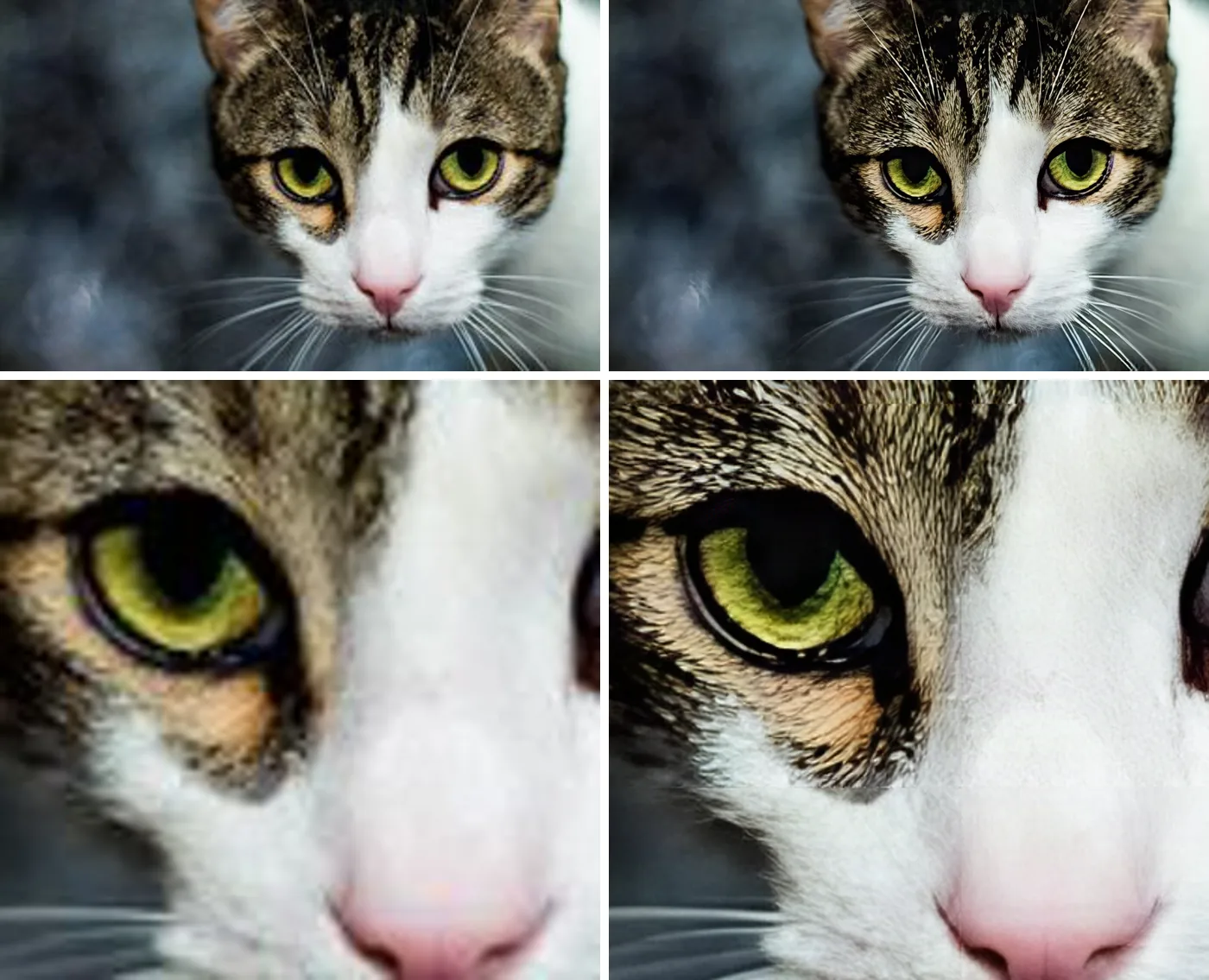
The pattern matches what we saw when we tested eight free enhancers on a blurred portrait: a focus miss on a well-lit subject is the best case, a small file improves in cleanliness more than in truth, and heavy motion blur is where every tool starts guessing.
How to fix a blurry photo on an iPhone
The Photos app has no deblur button, but it has three sliders that help with mild softness. Open the photo, tap Edit, choose Adjust, then scroll the dials to Sharpness, Definition and Noise Reduction. Raise Definition first — it adds local contrast and makes a slightly soft picture read as crisper — then add a little Sharpness. Small moves are enough; past a certain point you are adding halos along edges, not detail.
What these sliders do is raise contrast at edges the phone can already see. They do not rebuild detail that was blurred away, so they help a photo that is a touch soft and do nothing useful for a smeared one. If the sliders are not enough, you do not need an app: open the unblur page above in Safari, tap the upload area and pick the photo from your library. The processing happens on a server, so an old iPhone gets the same result as a new one, and you download the finished picture in the same tab.
How to fix a blurry photo in Photoshop
Photoshop's dedicated deblur tool is gone. The Shake Reduction filter was removed in version 23.3, and Adobe's forum thread asking for it back is still open (Adobe Community). What remains is sharpening, which works on a focus miss and does little for motion blur:
- Duplicate the layer, then go to Filter → Sharpen → Smart Sharpen.
- Set Remove to Lens Blur for an out-of-focus picture, or Motion Blur with the angle of the streaks for camera shake. Start around Amount 150–200% and Radius 1–2 px, and raise Reduce Noise if grain starts to show.
- For a gentler, more photographic look, use Filter → Camera Raw Filter instead and work the Detail panel: Sharpening amount up, then hold Alt (Option) while dragging Masking so the sharpening lands on edges and not on skin or sky.
We did not run Photoshop on the test files for this article; the steps above are the standard workflow, not a measurement. In our experience, Smart Sharpen in Lens Blur mode brings back a slight focus miss nicely. In Motion Blur mode it can reduce a short, straight streak and leaves a long or curved one mostly as it was.
How to fix a blurry photo in Lightroom
Lightroom gives you the same two levers as Photoshop plus one more, and it is worth being clear about which does what:
- Detail panel → Sharpening. Raise Amount, keep Radius near 1.0, and hold Alt (Option) while dragging Masking until only edges show white. This is the fix for a slightly soft photo.
- Photo → Enhance → Super Resolution. Adobe describes it as "doubling the image in size and quadrupling the pixel count" (Adobe: increase resolution). It is an enlarger: the right tool when the problem is a small file, and not a fix for a missed focus, because the blur is enlarged along with everything else. Apply it before sharpening, not after, or you enlarge the halos too.
- Denoise cleans grain. A noisy photo often looks blurrier than it is, so this is sometimes the better first step.
As with Photoshop, these are the documented steps rather than runs we timed for this article.
How to fix a blurry photo in Google Photos
Google Photos has an actual deblur tool, Photo Unblur, and since May 15, 2024 it is no longer limited to Pixel phones: Google made it available to anyone using Google Photos on a device with at least 3 GB of RAM running Android 8 or iOS 15 or later (Google's announcement). Open the photo, tap Edit, then Tools (on some versions Actions), choose Unblur, and move the slider to taste. Google's help pages list different minimum requirements per device — the improved Unblur on iPhone and iPad asks for 6 GB of RAM — so if the button is missing, that is usually why.
It works on the same principle as the browser tool above — reconstruction rather than contrast — so expect the same shape of result: good on a soft face, cautious on motion blur. The photo has to be in Google Photos first, which on an iPhone means uploading your library to Google. We did not include it in the timed test because it needs an account.
When a blurry photo cannot be fixed
Some photos are not coming back, and it is better to know before you spend time on them.
- Heavy motion blur. Long streaks and double edges leave too little structure. A tool can make the frame look cleaner, but the detail in the result is invented, not recovered. Case B above is the mild end of this; a subject that crossed the frame is the far end.
- Faces that were only a few pixels wide. The result can be a plausible face rather than the person. Check the eyes against the original before you share it.
- Text that was never readable. If you cannot make out the letters at full size, a model cannot either, and it may draw confident letters that are wrong. Treat any sharpened sign, plate or number as a hint to verify, never as evidence.
In those cases the honest fix is a different copy of the picture — the original export instead of the chat-app version, a larger download instead of a screenshot — or another shot of the same moment.
FAQ
Can a blurry photo really be fixed?
Often, yes — if it is slightly out of focus, a little shaky, or shrunk by a messaging app. In our runs, case A (out of focus) came back sharp in 12 seconds, case C (a 320-pixel file) came back four times larger and clean but visibly AI-drawn, and case B (motion blur) did not improve. Heavy motion blur and detail that was never captured cannot be recovered, only approximated.
How do I fix a blurry photo for free?
Use a browser tool with free runs: no download, no account. Retouchly gives 3 free runs a day at up to 2,048 px output. The iPhone Photos app sliders and Google Photos' Unblur are also free on supported devices, with the limits described above.
How do I fix a blurry photo on my iPhone without an app?
Two ways: the Sharpness and Definition sliders in the Photos app for mild softness, or an unblur page opened in Safari for anything stronger. Both keep the result in your camera roll and install nothing.
Why does my fixed photo look painted or fake?
Because an AI deblur tool reconstructs detail it cannot see, and when the blur was heavy there is little to go on, so it draws textures that look plausible but artificial. This is most visible on skin and hair after motion blur. If a result looks painted, try a less-damaged copy of the picture rather than running the same file again.
Does fixing a blurry photo make it bigger?
Not necessarily. Sharpening tools keep the size. Some AI tools enlarge as they sharpen: case C went from 320×198 to 1,280×792 (4×) in our run; Lightroom's Super Resolution doubles the size but does not deblur.
Which fix for which photo
- Slightly soft, well lit. Any of the above will help; the browser tool or Smart Sharpen in Lens Blur mode gives the biggest change.
- Short motion streak. Smart Sharpen with the right angle, or an AI tool — and look closely at the result before trusting it.
- Tiny or compressed file. An AI tool that enlarges as it cleans up; Super Resolution if you already live in Lightroom.
- Long streaks, unreadable text, faces a few pixels wide. Find another copy or another shot.
To try it on your own photo: Retouchly's unblur tool, no account, 3 free runs a day.