Photo Colorizer — Turn Black and White Photos into Color Online
Add natural-looking color to black and white and sepia photos. The colors are the AI's best guess, not the original ones; your photo's own light, shadow, and detail are kept.
Edit your photo
Loading processing conditions…
click to browse, or paste from your clipboard · JPEG, PNG, or WebP
Before and after
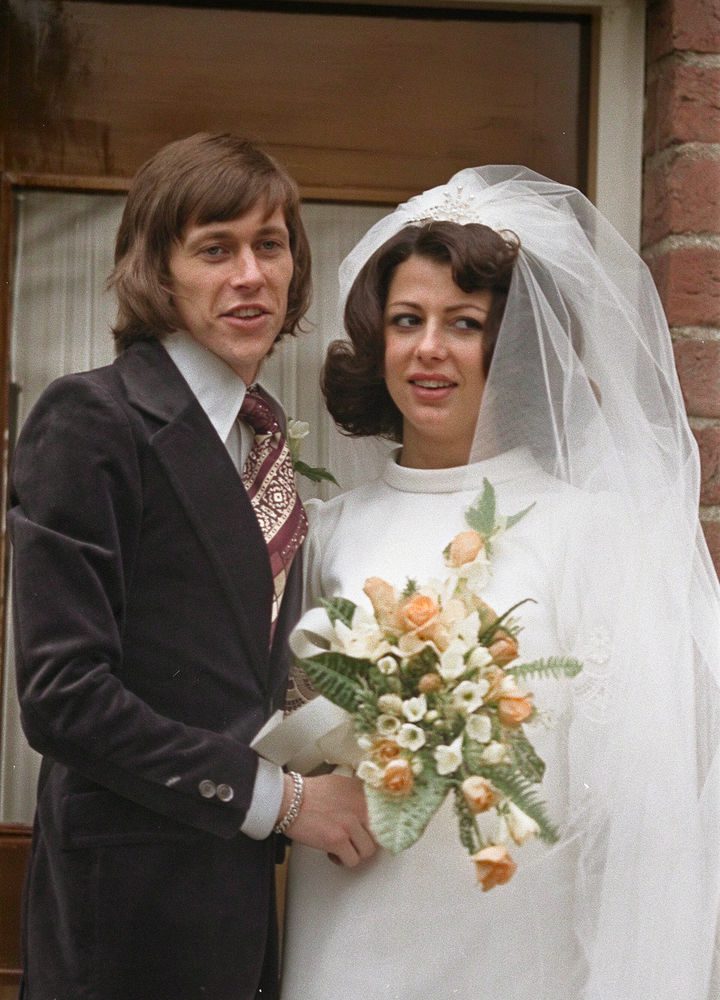
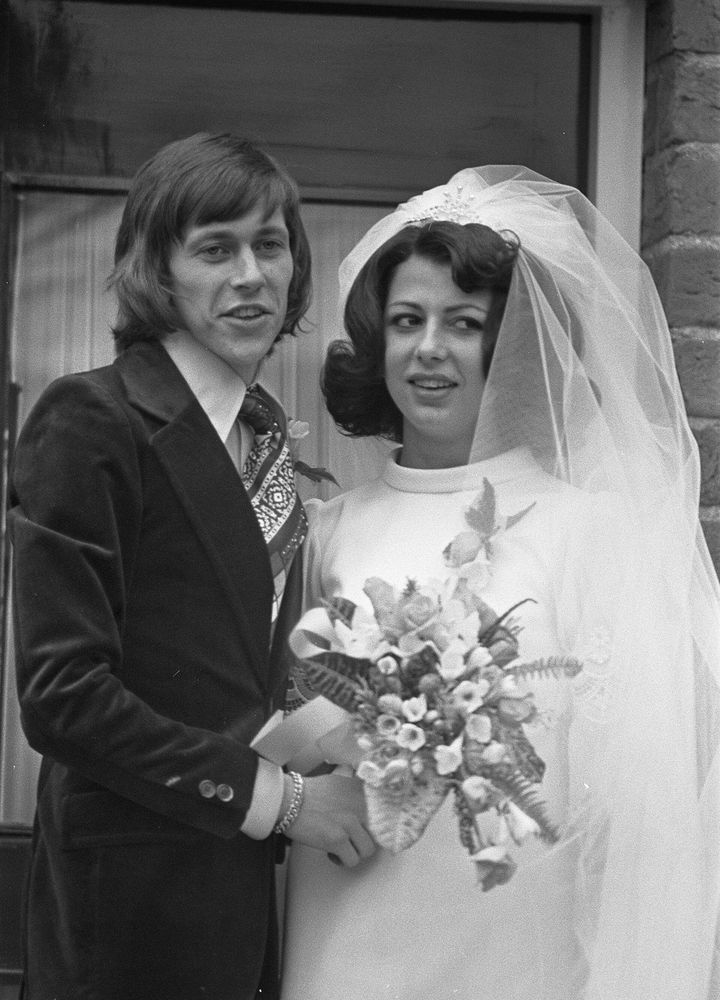
Explore a precomputed result. Trying this sample is instant and uses no credits or daily allowance.
How to colorize a black and white photo
Adds color only — no repair, no redrawing. The colors are a best guess.
Choose your image
Upload, drag, or paste a photo. Check the resize notice and processing conditions.
Start processing
Confirm the displayed cost and limits, then start. The page shows the actual task status while you wait.
Compare and download
Compare the result with your original and check the output dimensions, then download.
Why Retouchly
| Free runs per day | 3 |
|---|---|
| Sign-up | Not needed for free runs |
| Watermark | None, on free and paid results |
| Max output size | Free: 2048 px on the long edge · Paid: 4096 px |
| Image deletion | Within 24 hours after the task finishes |
What a photo colorizer does
A photo colorizer adds color to a black and white or sepia photo. This one works in two steps. First an AI image model, ByteDance's Seedream, paints a color version of your photo. Then your browser keeps only the colors from that version and lays them over the photo you uploaded. Brightness — the light, the shadow, and every line of detail — comes from your own photo, so the result is your picture with color added, not a redrawn copy of it. The model works on a smaller copy of the photo, about 1.5 megapixels, and its colors are stretched back to your photo's full size.
It works that way because image models that colorize also tend to "fix" the picture while they are at it: they smooth skin, redraw expressions, and tidy up damaged corners. In our own tests on 33 photos that happened often enough that we do not hand you the model's picture at all. Keeping your photo's own brightness means its details are recolored, never redrawn. Across those 33 photos — tintypes, glass plates, wedding portraits, farm scenes, and group shots with small faces — none of the results put a color in the wrong place or cast one tint over the whole picture, and darker skin tones kept their depth instead of being lightened.
The colors are a guess. A black and white photo does not record what color anything was, so no colorizer can know whether a dress was blue or green. The model picks colors that look natural for the scene — skin, sky, grass, wood, fabric. In our tests on photos whose real colors we knew, it often guessed differently: a red hat came back straw-colored, a yellow background came back grey. Treat the result as a plausible color version of the photo, not a record of its original colors. It does best with things whose color seldom varies, like skin and sky, and worst with things someone chose the color of, like clothing, hats, cars, and painted walls — and even a landscape can miss: green hills came back brown in one test.
Colorizing is a separate tool from repair. It does not fix the photo: scratches, dust, creases, and fading stay, and damaged spots are colored along with everything else. If a print is faded or soft, old photo restoration is a separate step. In our tests, restoring a photo first did not reliably give better colors, so try the photo as it is before you add that step.
How to colorize a black and white photo for the best results
Start from the best copy of the photo you have. A scan, or a flat, evenly lit phone photo of the print, shows the model clearly what is in the scene, and the clearer the scene, the more sensible its color choices. Crop away the album page or the table around the print so the colors go to the photo. Sepia, brown-toned, and faded prints work too: the old tint is replaced, not mixed in, because every color in the result comes from the color pass.
The result keeps the size of the photo you upload. Free runs output up to 2048 px on the long edge and credit runs up to 4096 px; a bigger image is scaled down to that limit before upload. The colors come from a smaller color pass, which is enough, because color changes far more slowly across a photo than detail does. Colorizing does not make a photo bigger or sharper.
Free runs come out of the same 3 free runs a day as the other tools on this site. With credits, one colorization takes 2 credits, because the model behind it costs more to run than our other tools. A failed run returns the free run or credits it used. The cost is shown on the tool before you start.
Compare before you keep it. In our tests the model's color pass took about 20 seconds, 25 at most. The result appears beside your original with a slider, and the final photo is put together in your browser, so the download is a JPEG at your photo's size. Your upload and the color pass are deleted from our storage within 24 hours.
Tips for better colors
- Upload the photo as it is. In our tests, restoring a photo before colorizing it did not reliably improve the colors, and on one small portrait it left the faces looking washed out.
- Crop to the edge of the print, so mats, frames, and the table around it are not colored as part of the scene.
- Scan at a good size, but free results stop at 2048 px on the long edge; a larger upload is scaled down first.
- Check the colors you know — a uniform, a car, someone's eyes — against what you or your family remember, and say it is a colorized version when you share it.
- Keep the original black and white file. The colorized copy is a new picture, and our copies are deleted within 24 hours.
Frequently asked questions
Which image formats can I use?
Use JPEG, PNG, or non-animated WebP. Export HEIC photos as JPEG or PNG first.
Will my image be resized?
Images above the displayed processing limit are reduced before upload. You will see a resize notice before starting; results show their actual pixel dimensions.
Will the result have a watermark?
No. Both free and credit-paid results are watermark-free.
Where is my image processed?
Your image is uploaded for processing. The provider and image retention period are shown in the processing conditions before you start.
What happens if processing fails?
When the service confirms a provider failure or timeout, your allowance and any credits used are returned. A browser waiting timeout alone does not confirm failure.
Do I need to sign up to download?
No extra registration or purchase is required after a successful run. Download your result before the displayed deletion time.
Will the colors be the real, original ones?
No — and no colorizer can promise that. A black and white photo does not record color, so the model chooses colors that look natural for the scene. In our tests the colors usually looked natural, but they were often not the real ones: a red hat came back straw-colored, a yellow background came back grey. If you know an original color, compare the result against it.
Can I colorize photos online for free?
Yes — you get 3 free runs a day, no account needed, shared with the other tools on this site. Free results are up to 2048 px on the long edge and have no watermark. After that, colorizing takes 2 credits per photo, because the model behind it costs more to run than our other tools.
Is this a black and white to color converter?
Yes. Upload a black and white or sepia photo and it comes back in color, at the size you uploaded. It is made for photographs — portraits, family and street photos, landscapes. A photo that already has color is recolored with the model's own guesses, so it is not a way to fix faded color.
Does colorizing change the details in my photo?
Colorizing only replaces color. The brightness of every pixel — light, shadow, edges, texture — comes from your upload, so nothing in the photo is redrawn or moved. The colors can still be wrong in places: a guess that does not match the original, or a dark stain on a face that comes back reddish-brown. Check the result with the slider before you keep it.